

Teragon World Generator Guide: Presets, Commands, and Tips for 7 Days To Die
This is a long-form, near 1:1 walkthrough of the Teragon world generator documentation for 7 Days To Die. It covers how the generator works, what presets do, every core command and its parameters, and the predefined tags you can use to keep scripts dynamic. The goal is to mirror the official PDF so you have a complete reference alongside practical guidance for stable, customized worlds.
- Understand the Teragon concept and how scripts/presets execute.
- See every documented command with inputs, outputs, and EPI priority.
- Reuse dynamic predefined tags to keep presets portable.
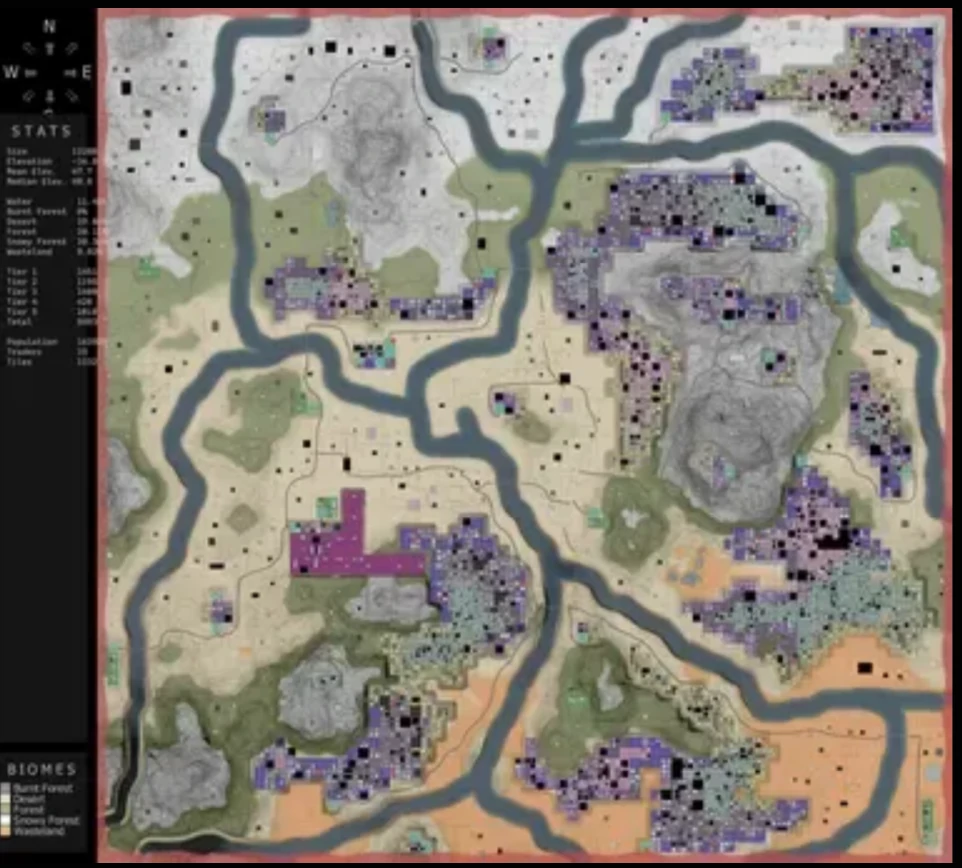
Introduction
Teragon is a work-in-progress world generator for 7 Days To Die. All documentation can change and may be incomplete or contain errors. This guide sticks closely to the PDF so you can reference it without opening the file.
Concept
Teragon is a configurable scripting system. You chain commands that generate terrain, merge maps, and place towns/POIs. The order is flexible as long as dependencies are respected—for example, a height map must exist before a command that reads it can run.
How Teragon works
You can either code a sequence of commands or load a preset (a saved script). Casual users rely on presets; power users assemble their own command lists. Commands execute in order and can read/write variables (height maps, world data, POI sources). Logical dependencies matter: generate terrain before placing towns; parse mod paths before spawning custom POIs.
Presets
Presets are .ini files that store the command sequence and options. Load them to get different looks (e.g., World Generator 1–3), previews, biome-only maps, or mod compatibility. You can also edit and save your own presets.
How to generate worlds and more
- Launch Teragon and close the welcome window.
- Load a preset via File → Load… (World Generator 1, 2, or 3 are built-in).
- Review options in the Basic tab; less-common settings live in Advanced. Expert and Testing tabs are for experienced users.
- Set world size and desired options, then click Run. The progress bar beneath the menu shows the active command. Generation time depends on settings, hardware, and optimization state.
Commands (from the documentation)
Below are the documented commands with their Effect Priority Indicator (EPI) and parameters.
Add Height Map (EPI: Low)
Combines two height maps by adding their local altitudes. The result replaces the Target height map after summing with the scaled Height map.
- Target height map: First input and recipient of the result.
- Height map: Second input to add.
- Elevation of height map: Scales the Height map (top altitude in meters). Set to 256 to avoid rescaling.
Add Source Path (EPI: Very low)
Parses prefab XMLs for POIs outside the game directory—required for custom/modded POIs. Best placed right after Set Game Data; add multiple paths if your mods are split.
- Directory…: Path to add as a source.
- Subdirectories: If checked, Teragon reads all subfolders; otherwise only the main path.
Create Noise Height Map (EPI: Medium)
Generates random terrain via FastNoiseSIMD, then normalizes to 0–255. Requires world size set beforehand.
- Map name: Variable to store the height map.
- Seed: Reproducible terrain; same seed = same world.
- Frequency: Higher values create smaller structures.
- Octaves: Layered noise detail.
- Lacunarity: Adds small substructures; lower values are smoother.
- Gain: Also influences smoothness.
- Noise Type: Controls the style of terrain.
- Fractal Type: Adjusts fractal-based noise appearance.
Max Height Map (EPI: Low)
Combines two height maps by taking the higher local elevation at each coordinate. Target holds the result, using the scaled Height map as the comparator.
- Target height map: First input/result.
- Height map: Second input.
- Elevation of height map: Scale for the Height map (256 to skip rescaling).
Min Height Map (EPI: Low)
Combines two height maps by taking the lower local elevation at each coordinate. Target holds the result, using the scaled Height map as the comparator.
- Target height map: First input/result.
- Height map: Second input.
- Elevation of height map: Scale for the Height map (256 to skip rescaling).
Save Preset (EPI: Low)
Saves the current preset to the default backup location (~/settings/Teragon.ini) so you can recover after a crash.
Set Region Sector Size (EPI: Low)
Changes the default region sector size (16). Larger sectors divide the world into bigger regions and can make POI placement less precise.
Predefined command tags
Tags can be used in most text fields to generate values dynamically. They can be combined and allow dependencies inside presets.
[appdata][gameversion]: Replaced by the game version (format: Alpha.main-update.minor-update.0, e.g., Alpha.20.6.0).[math,format,expression]: Evaluates a math expression. Example:[math,int,[worldsize]/2+1]returns 2049 for a 4096 world. Supports math functions like Abs, Acos, Asin, Atan2, Cbrt, Ceil, Cos, Cosh, Floor, Log, Log10, Log2, Max, Min, Pow, Random, Round, Sign, Sin, Sinh, Sqrt, Tan, Tanh, Trunc, and constants E, Pi.[random]: Random integer 0–2,000,000,000 using system time as seed. Variants:[random,int,min,max]or[random,float,min,max]for ranged values.[teragonpath]: Teragon’s main directory (whereTeragon.exelives).[teragonversion]: Teragon version (format: x.xx, e.g., 0.33).[username]: Windows username running Teragon.[worldpath]: The output directory defined in the Basic tab.[worldsize]: Current world edge length (1024, 2048, 3072, 4096, 5120, 6144, 7168, 8192, 9216, 10240, 11264, 12288, 13312, 14336, 15360, 16384).
Practical guidance (grounded in the doc)
- Order and dependencies: Run commands in logical order—create or merge height maps before town/POI placement; add source paths right after Set Game Data.
- Noise tuning: Adjust Frequency, Octaves, Lacunarity, and Gain on small test worlds before generating an 8K+ map.
- Scaling merges: Use Elevation scaling thoughtfully with Add/Max/Min to avoid extreme cliffs.
- Backup often: Save Preset periodically so crashes do not wipe your configuration.
- Sector sizing: Larger region sectors trade precision for speed; keep defaults if you need accurate POI placement.
- External POIs: Add Source Path for each mod pack and enable Subdirectories when prefabs sit in nested folders.
- Use tags for portability: Swap hardcoded numbers for
[worldsize]and[math]so presets adapt to any map size.
Running and testing worlds
After generating a map, test it on a dedicated server to check POI coverage, height transitions, and performance. If you need hosting, our 7 Days To Die server hosting guide covers setup and tuning. For the base game itself, see the official 7 Days To Die site.
Bibliography and index (as in the PDF)
The source PDF lists a short bibliography and an index covering: Add Height Map, Add Source Path, Create Noise Height Map, Max Height Map, Min Height Map, Save Preset, Set Region Sector Size.
Teragon is still evolving, but this reference keeps the full documented options in one place so you can build handcrafted worlds with confidence.